Broadbent Cloud
Back up foldersto your Broadbent Cloud drive
A desktop app for Windows, macOS and Linux. Sign in with your account, pick a folder, and keep it on the drive — including the free 1 GB plan.
Overview
The backup app for the drives you already have
Storage stays on the drive plan. The desktop app is how this computer keeps selected folders on that drive.
01
Back up a folder
Choose a folder on this computer and the drive folder it should keep. The app copies what changed and leaves the rest.
02
Same account
Sign in with the same email and password as the customer portal. Every drive on that account is listed, with the access you already have.
03
Quota on each drive
See how much of the drive is in use before a backup starts, and open the plan when you need more space.
04
Stays running
Closing the window leaves Broadbent Cloud in the menu bar or system tray. Quit is on that menu.
The app
Sign in, then the drives on the account
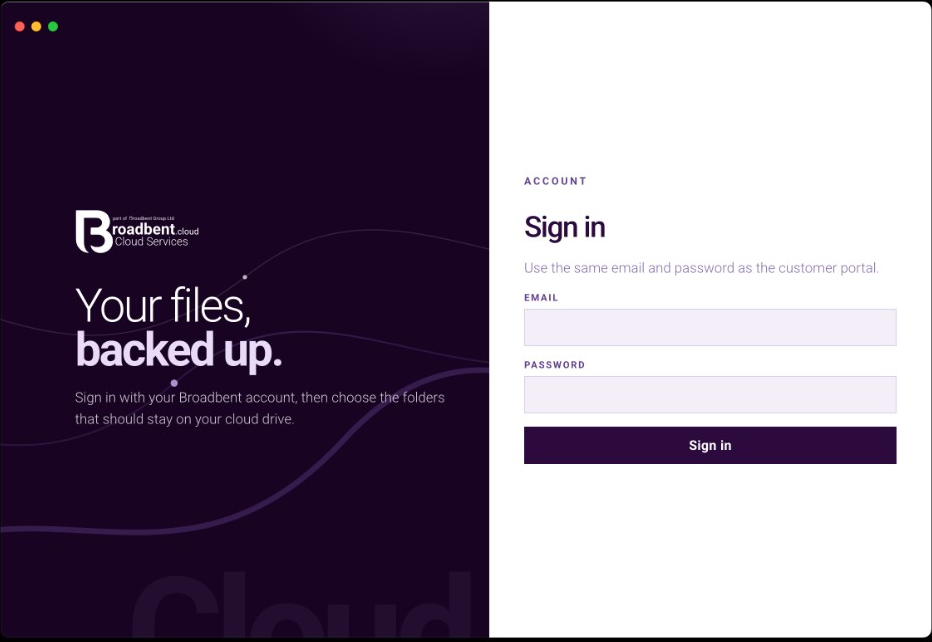
Sign inThe same email and password as the customer portal. After that, choose the folders that should stay on the drive. 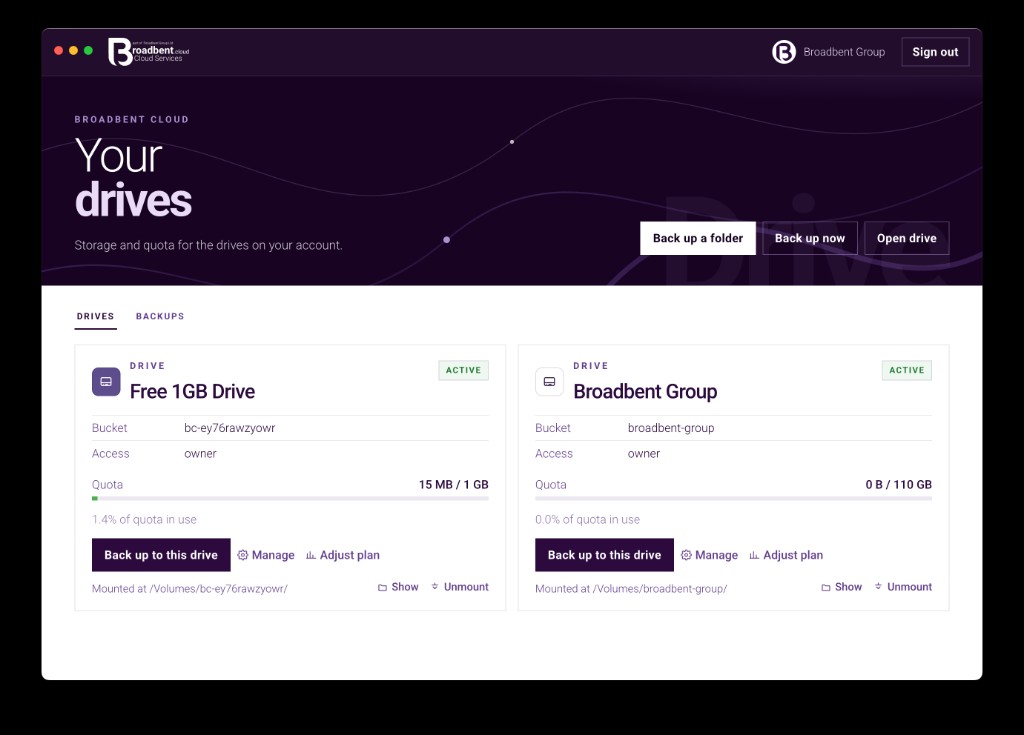
Your drivesEvery drive on the account, with quota used, who can write, and the plan controls. 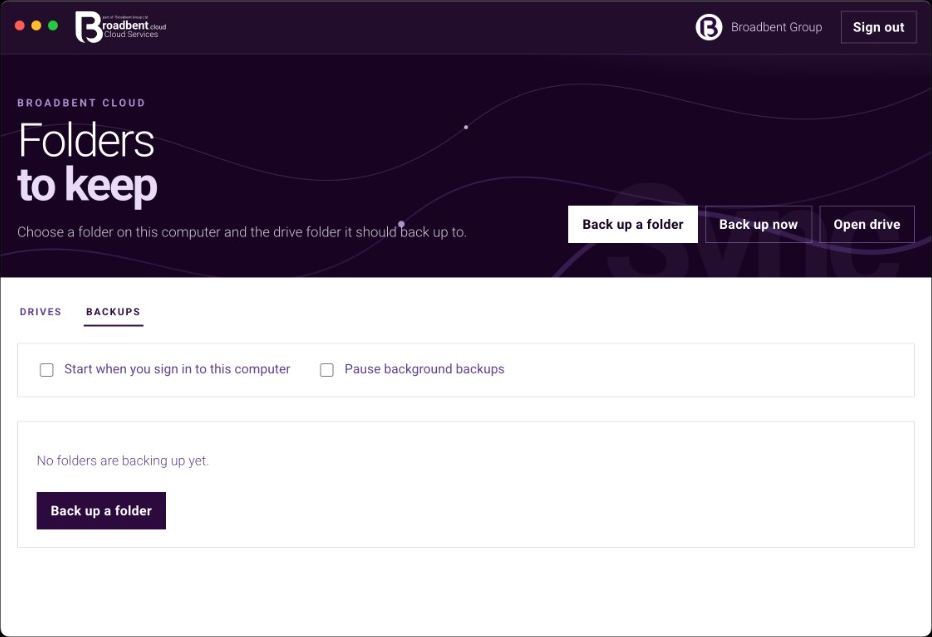
Folders to keepNothing is listed until you add a folder. Start at login, or pause every backup from here. 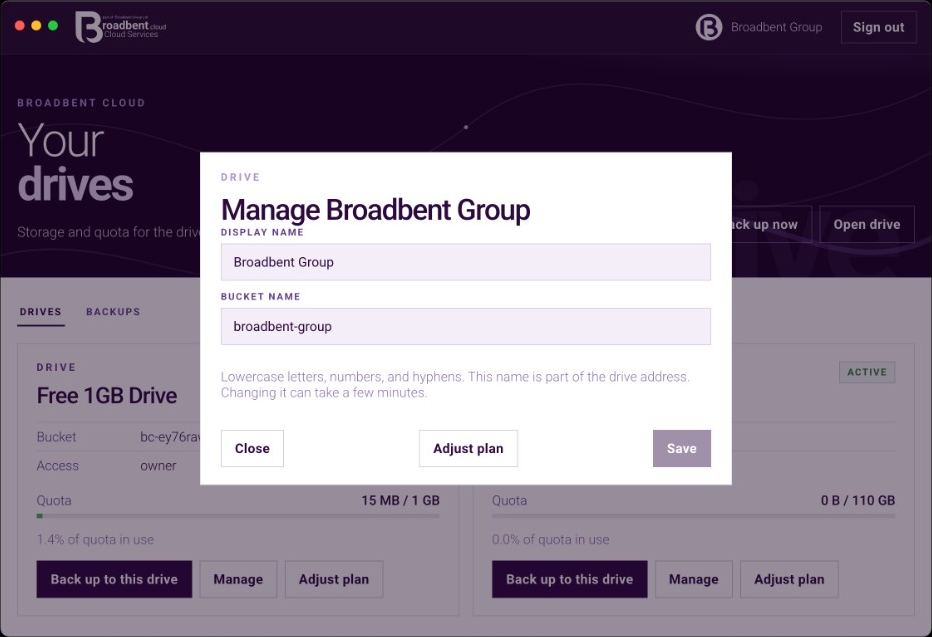
Manage a driveChange the display name and the bucket. A bucket change can take a few minutes.
Contact
Speak to the team
Call our Colchester sales team, or send a message anytime.
UK sales team · 8:00am–8:00pm